Browser Profiles
Use Browser Profiles to preserve cookies, session data, and login state across flow executions and discovery sessions. This enables Rock Smith to test authenticated-only pages reliably.
Why Use Browser Profiles
- Access authenticated pages (dashboards, settings, admin areas)
- Reuse login sessions across flow executions and discovery sessions
- Avoid re-authenticating during every execution
Profiles are stored locally on your machine and are not uploaded to Rock Smith servers.
Creating and Managing Profiles
Access the Manage Browser Profiles dialog from:
- Settings: Open Settings and locate the Browser Profiles section
- Flow Execution: Click Manage Profiles when configuring a flow run
The dialog provides a centralized interface for creating profiles, viewing existing ones, and launching browsers for authentication setup.
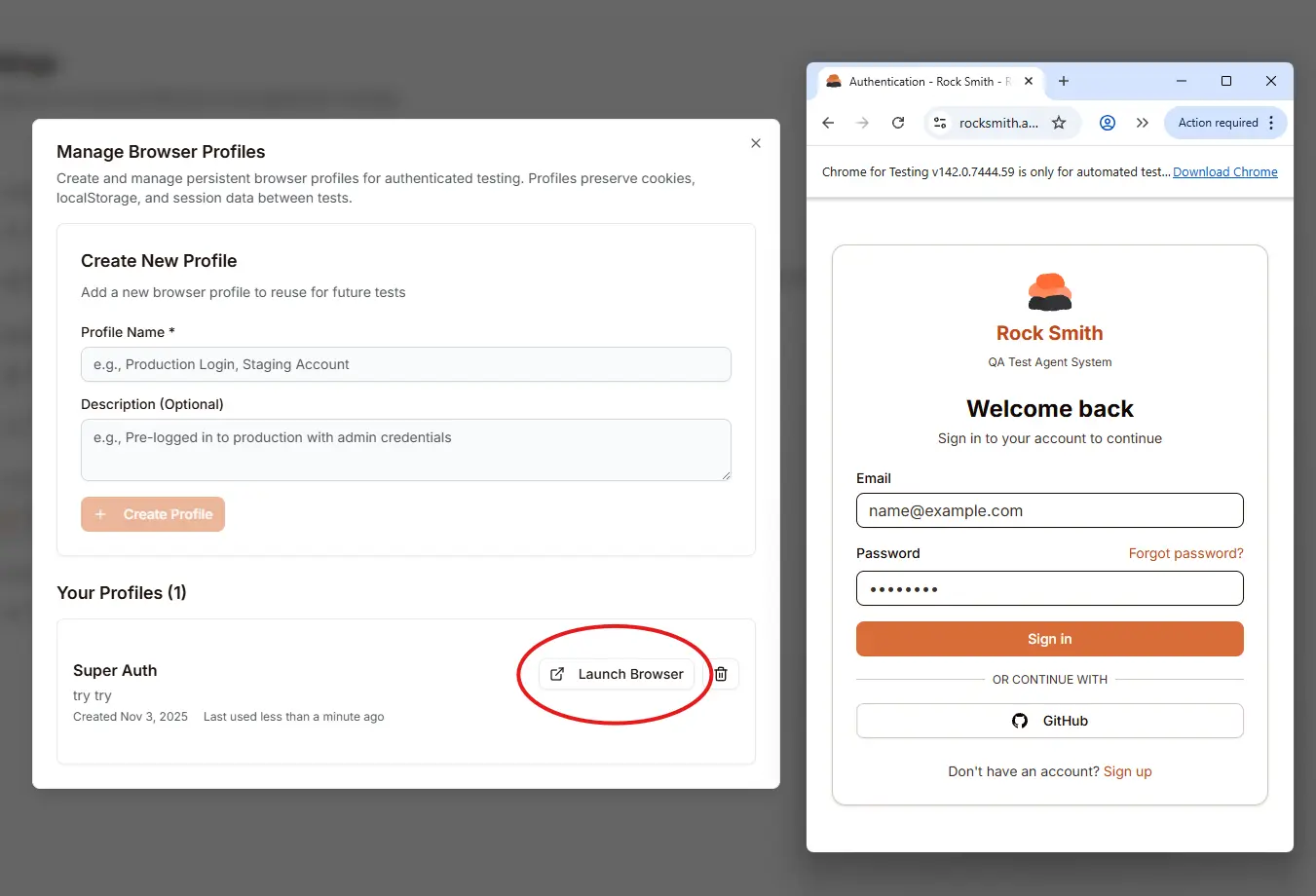
Create New Profile:
- Enter a Profile Name (required) - e.g., "Production Login", "Staging Account"
- Add an optional Description - e.g., "Pre-logged in to production with admin credentials"
- Click Create Profile
Your Profiles: Each profile card displays:
- Profile name and description
- Created date and last used timestamp
- Launch Browser - Opens Chrome for Testing with this profile
- Delete (trash icon) - Removes the profile and its data
Chrome for Testing
When you click Launch Browser, Rock Smith opens a dedicated Chrome for Testing instance. This browser:
- Displays a banner indicating it's for automated testing
- Stores cookies, localStorage, and session data in your profile directory
- Persists authentication state between launches
- Runs independently from your regular Chrome browser
Pre-Login Workflow (Recommended)
Follow these steps to prepare a profile for authenticated testing:
- Create a profile (e.g., "Staging – Admin")
- Click Launch Browser for that profile
- In the Chrome for Testing window, navigate to your site and sign in
- Verify protected pages load correctly while signed in
- Close the browser window when finished (do not log out)
Your login session, cookies, and localStorage are now saved in that profile and can be reused by the AI agent during flow executions.
Selecting a Profile for Execution
When configuring a flow execution or discovery session:
- In execution options, select the desired Browser Profile from the dropdown
- If no profile is selected, a temporary session is used (no saved login)
For flows that test authenticated features, always select a pre-configured profile to ensure consistent access to protected pages.
Best Practices
- Create separate profiles for each environment (Prod, Staging, Dev) and role (Admin, User).
- Keep profile names clear and short; use descriptions for extra context.
- Pre-login right before long flow executions to avoid session expiry.
- Avoid using incognito/private mode when preparing a profile.
Security Notes
- Profiles live locally and include cookies/session data—treat them like credentials.
- Do not share profiles between different OS users or machines.
- Use least‑privileged accounts for testing (e.g., non‑admin where possible).
Troubleshooting
- Login didn’t persist:
- Ensure you launched the profile browser from Rock Smith (not a separate browser).
- Avoid logging out before closing the profile browser.
- Relaunch the profile browser and re‑login; confirm the profile’s last used time updates.
- Can't reach protected pages during execution:
- Verify the selected profile matches the environment/URL being tested.
- Re-authenticate using Launch Browser, then rerun the flow.
- Connection issues:
- Connect to the server first and ensure no other execution is running.
Next Steps
- Working with Flows - Create and run test flows
- Discovery Sessions - Explore your site automatically
- Quick Start - End-to-end getting started guide