Discovery Sessions
Learn how to use Discovery Sessions to automatically explore your web application and capture visual contexts with Rock Smith's AI-powered agents.
What Are Discovery Sessions
Discovery Sessions use AI agents to automatically explore your web application, mapping its structure, identifying interactive elements, and capturing visual contexts. The AI agent crawls your site like a real user would—clicking buttons, navigating menus, and interacting with forms—to understand how your application works.
The primary output of discovery is Visual Contexts—captured snapshots of your application's UI states that can be used to generate test flows automatically.
What Discovery Captures
During exploration, Rock Smith captures:
- Visual Contexts: Screenshots with semantic descriptions of UI components
- Page Structure: URLs, navigation paths, and page hierarchy
- Interactive Elements: Buttons, forms, links, and inputs
- User Journeys: Natural paths through your application
- Agent Insights: AI-generated descriptions of discovered elements and their purpose
Starting a Discovery Session
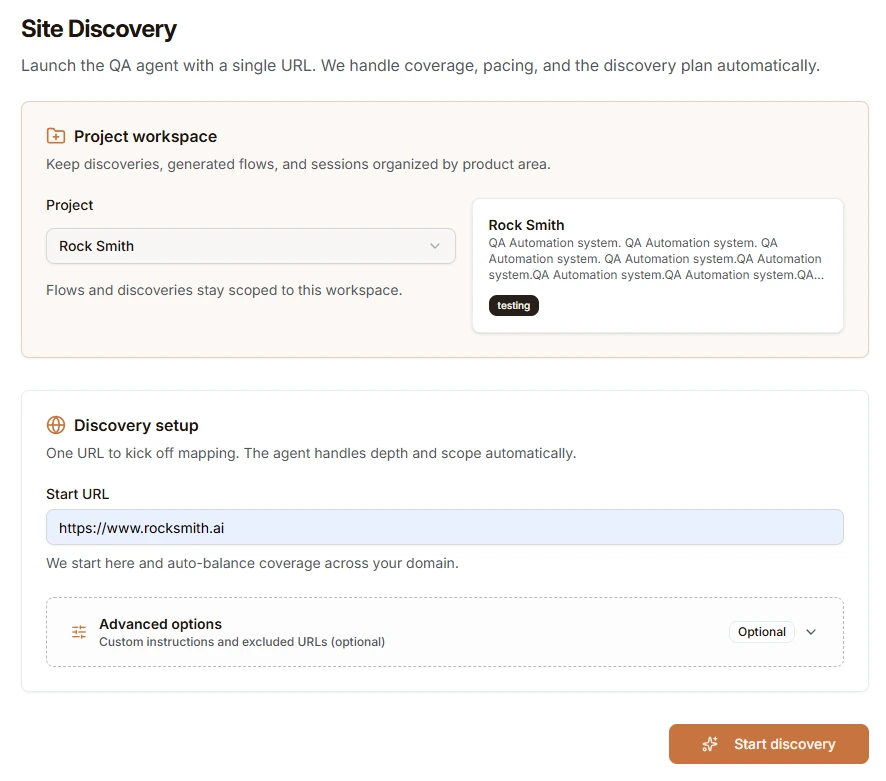
To start a new discovery session:
- Navigate to Discovery > New Discovery in the sidebar
- Select a Project from the workspace dropdown
- Flows and discoveries stay scoped to this workspace
- Select an existing project or create a new one
- Enter the Start URL where exploration begins
- The agent handles coverage, pacing, and depth automatically
- Click Start discovery to begin
Advanced Configuration
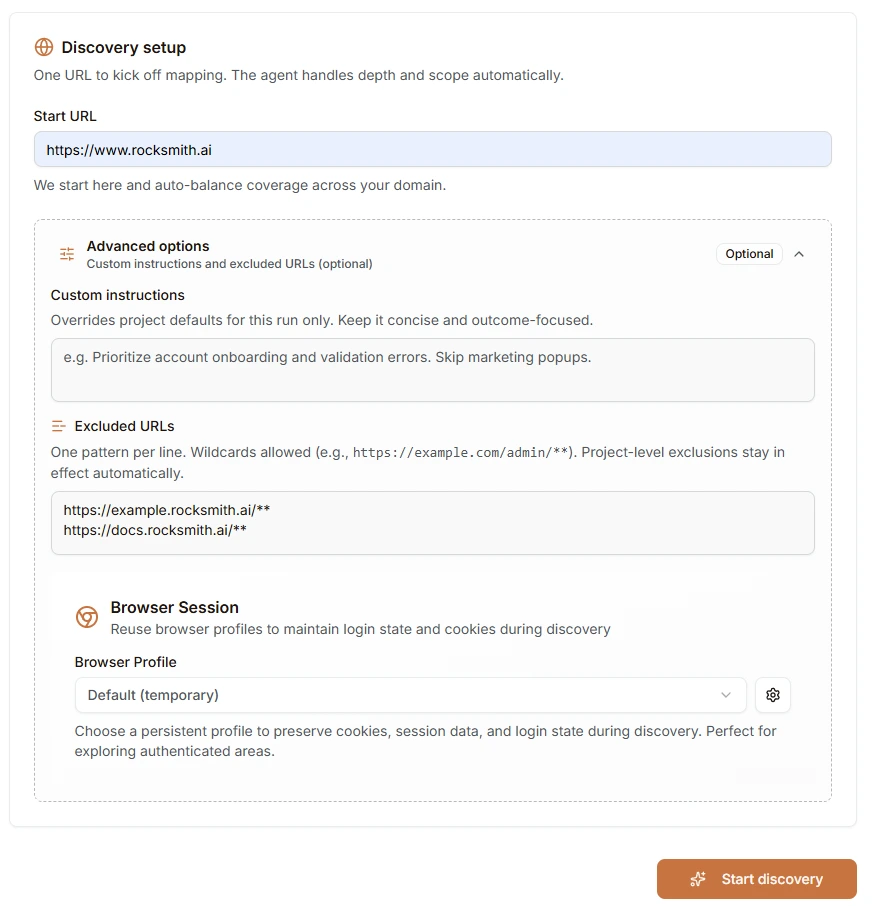
Expand Advanced options to customize the discovery session:
Custom Instructions
Override project defaults for this run. Keep instructions concise and outcome-focused.
Example: "Prioritize account onboarding and validation errors. Skip marketing popups."
Excluded URLs
Specify URL patterns to skip during discovery. One pattern per line, wildcards allowed.
Example patterns:
https://example.com/admin/**- Exclude admin pageshttps://docs.example.com/**- Exclude documentation subdomain
Project-level exclusions stay in effect automatically.
Browser Profile
Select a browser profile to maintain login state and cookies during discovery. This is essential for exploring authenticated areas of your application.
- Default (temporary): Explore as an anonymous user with a fresh session
- Custom profile: Use a pre-authenticated profile to access protected pages
See Browser Profiles for setup instructions.
Monitoring Discovery Progress
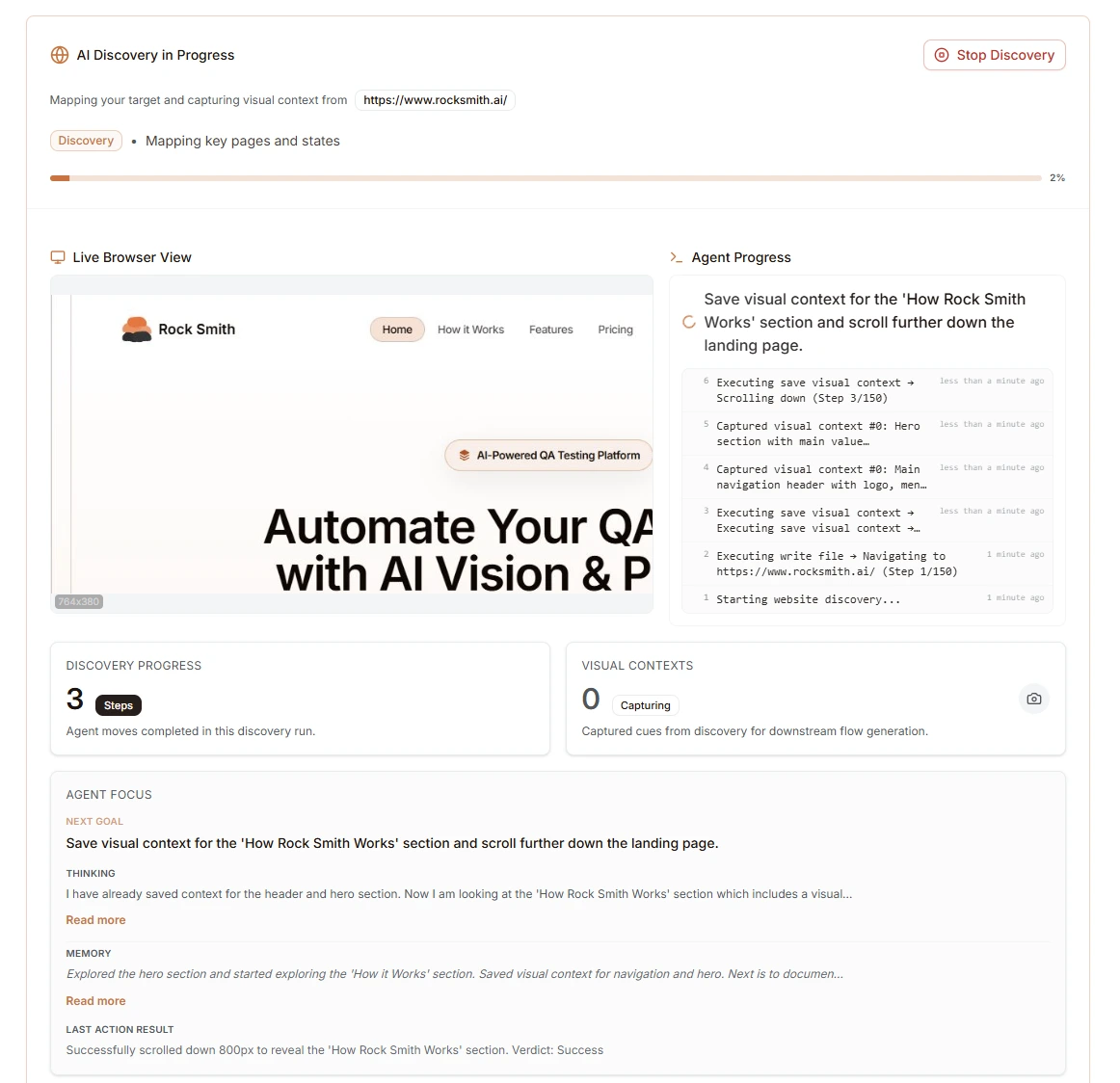
Once discovery starts, you can monitor progress in real-time:
Live Browser View
Watch the AI agent navigate your site in real-time. The browser view shows exactly what the agent sees as it explores, with the current viewport dimensions displayed.
Agent Progress
The timeline displays each action the agent takes:
- Current action: What the agent is doing right now
- Step history: Previous actions with timestamps
- Visual context captures: When screenshots are saved
Discovery Metrics
Two key metrics track discovery progress:
| Metric | Description |
|---|---|
| Steps | Agent moves completed in this discovery run |
| Visual Contexts | Captured UI states for downstream flow generation |
Agent Focus
The Agent Focus panel provides transparency into the AI's decision-making:
- Next Goal: What the agent plans to do next
- Thinking: The agent's reasoning about the current page
- Memory: Context the agent has accumulated during exploration
- Last Action Result: Outcome of the most recent action (Success/Failure)
Stopping Discovery
Click Stop Discovery to end the session early. Partial results are preserved—any visual contexts captured before stopping remain available for flow generation.
Reviewing Visual Contexts
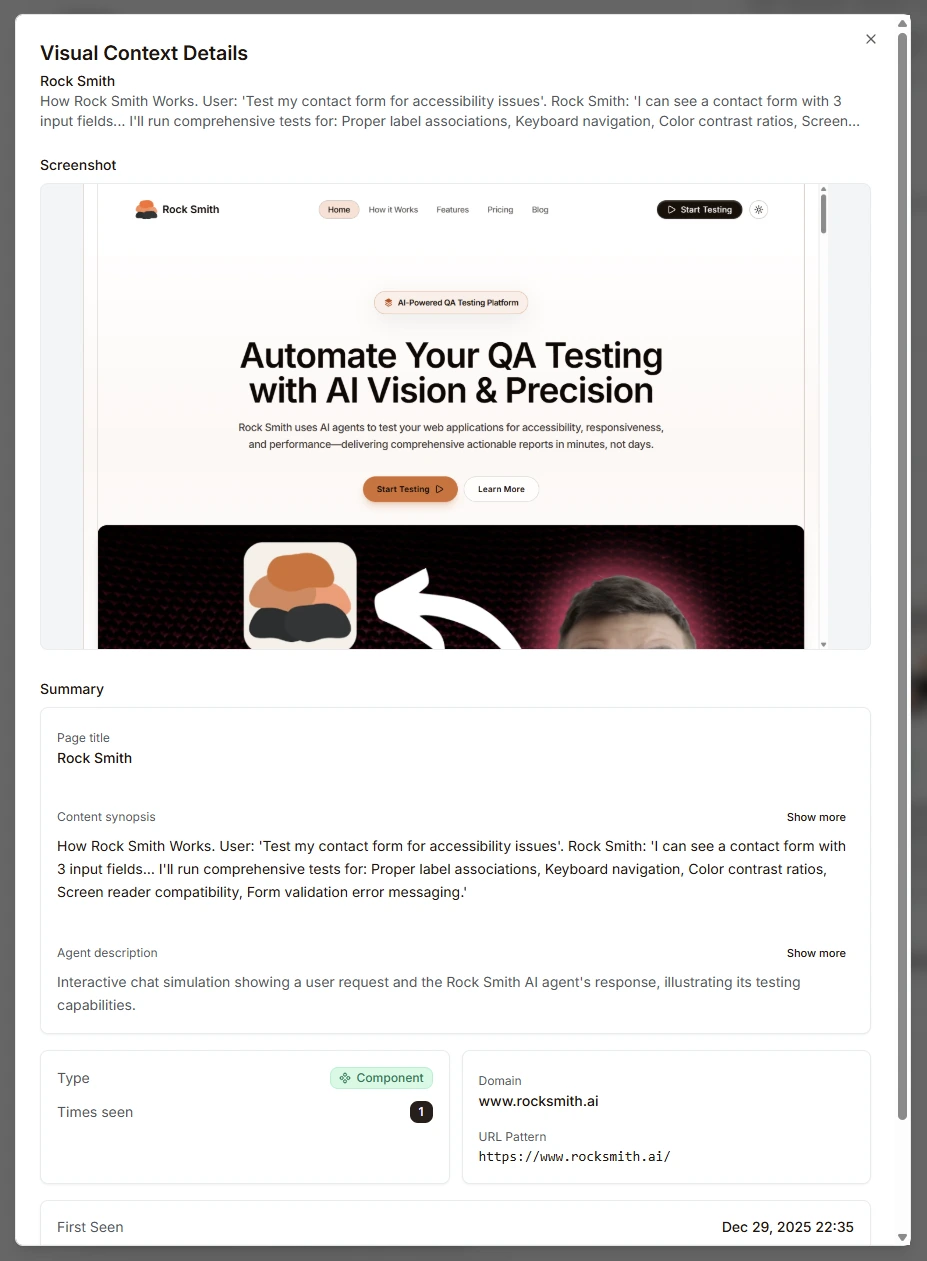
Visual contexts are the primary output of discovery sessions. Each context captures a specific UI state that can be used for test flow generation.
Visual Context Details
Click any captured context to view its details:
- Screenshot: Visual capture of the page state
- Page title: The document title at capture time
- Content synopsis: AI-generated summary of what's shown
- Agent description: How the AI interprets the UI component
- Type: Classification (Component, Page, Form, etc.)
- Domain: The website domain
- URL Pattern: The URL where this context was captured
- First Seen: Timestamp when the context was discovered
Context Types
| Type | Description |
|---|---|
| Page | Full page captures representing distinct application views |
| Component | Reusable UI components like headers, forms, modals |
| State | Specific application states (logged in, error, loading) |
Generating Test Flows from Discovery
Visual contexts captured during discovery can be automatically converted into test flows. This saves significant time compared to manual flow creation.
To generate flows from discovery data:
- Complete one or more discovery sessions for your project
- Navigate to Flows > Generate Flow
- Review the project's discovery data (sessions, visual contexts)
- Click Generate Flows
See Working with Flows for detailed instructions on the flow generation process.
Managing Discovery Sessions
Viewing Past Sessions
Access all discovery sessions for a project:
- Navigate to Discovery > Sessions
- Browse sessions by project or date
- Click a session to view its details and captured contexts
Session Statuses
| Status | Description |
|---|---|
| Running | Session is actively exploring |
| Completed | Exploration finished successfully |
| Stopped | Session was manually stopped |
| Failed | Session encountered an error |
Deleting Sessions
Remove sessions you no longer need:
- Open the session details page
- Click the Delete button
- Confirm deletion
Note: Deleting a session also removes its visual contexts but does not delete flows that were generated from it.
Best Practices
Before Discovery
- Select the right project: Keep discoveries organized by product area
- Pre-authenticate: Set up a browser profile for protected areas
- Define exclusions: Identify URLs to skip (admin panels, external links, logout)
During Discovery
- Monitor the live view: Watch for unexpected navigation or errors
- Check visual context count: Ensure the agent is capturing useful states
- Stop early if needed: Partial results are still valuable
After Discovery
- Review visual contexts: Check captured states before generating flows
- Generate flows promptly: Convert discoveries to test flows while context is fresh
- Clean up: Delete sessions that didn't produce useful results
Troubleshooting
Discovery Stops Early
- Authentication expired: Re-authenticate your browser profile
- Navigation blocked: Check for CAPTCHA or bot detection
- Page errors: The target site may have JavaScript errors
Missing Visual Contexts
- Behind authentication: Use an authenticated browser profile
- Dynamic content: Some content requires specific user interactions
- Excluded by pattern: Check your excluded URL patterns
Slow Discovery
- Large site: Complex sites with many pages take longer
- Heavy pages: Pages with lots of JavaScript slow exploration
- Network latency: Server response time affects discovery speed
Next Steps
- Working with Flows - Generate and edit test flows
- Edge Case Testing - Generate test variations
- Browser Profiles - Set up authenticated exploration
- Managing Credits - Track discovery costs